
Sign in to the portal and register the Authenticator
Sign in
Section titled “Sign in”- Open the portal address your administrator gave you.
- Select Sign in with your company account.
- Enter your user name and password on the identity provider page, then the one-time code from your authenticator app.
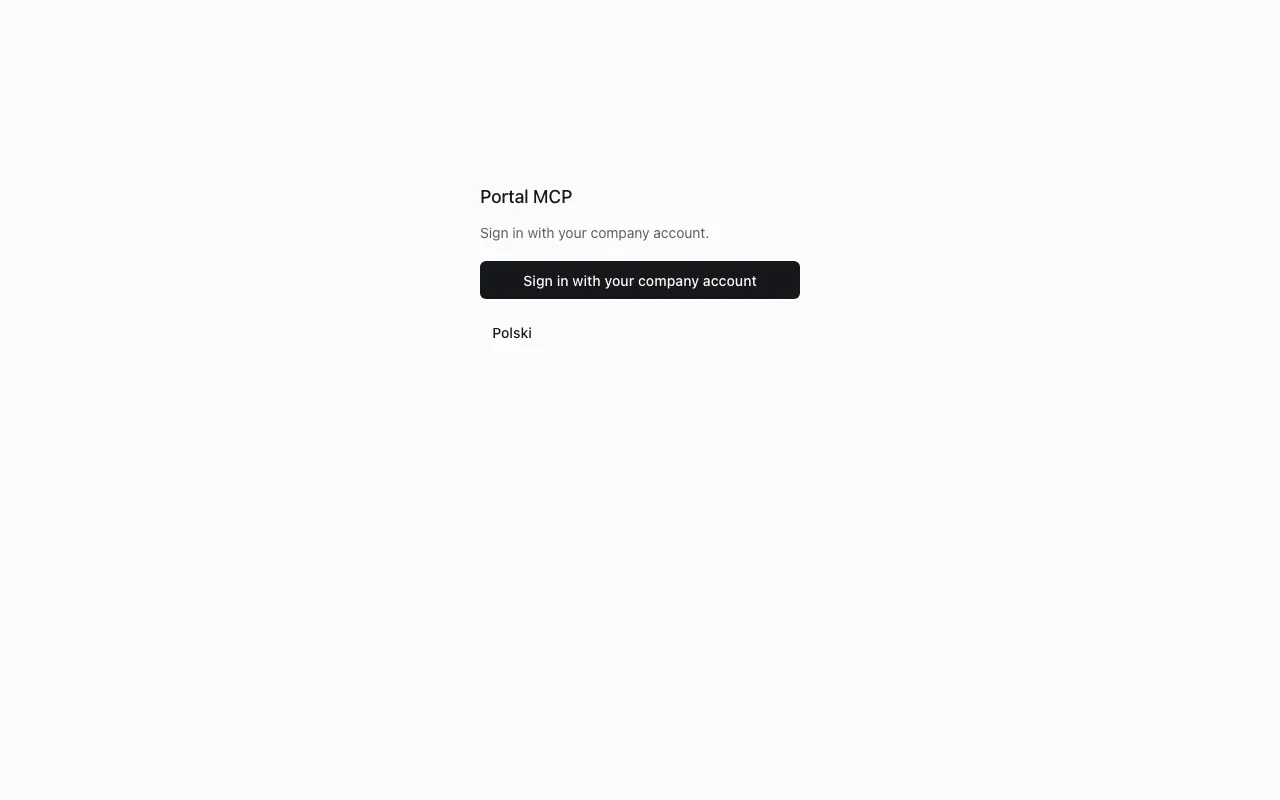
The page and the portal switch between English and Polish with the language button (Polski or English). Dark mode is in the header next to your name.
If you use the identity provider that comes with the platform bundle:
- At the first sign-in you set up an OTP in an authenticator app. After that the code is asked after the password at every sign-in, also when Claude Code signs in.
- A password needs at least 12 characters, and the account is locked after 10 failed attempts. Ask an administrator to lift the lock.
Session
Section titled “Session”The portal session ends after 30 minutes without activity or after 8 hours in total. The sign-in page then says “Session expired. Sign in again.”
| Message on the sign-in page | Meaning |
|---|---|
| Sign-in cancelled. | You closed or cancelled the identity provider page. |
| The sign-in service is not responding. Try again in a moment. | The identity provider did not answer. |
| Could not verify your identity. Try registering again. | The extra sign-in (OTP) for a sensitive action failed. Repeat the action. |
| Session expired. Sign in again. | Idle or total session time ran out. |
Two entries in your authenticator app
Section titled “Two entries in your authenticator app”You end up with two separate entries in the app:
| Entry | Used for |
|---|---|
| The OTP of your company account | signing in to the portal and to Claude Code |
| “MCP Platform” | confirming destructive operations of the agent, see Confirm a destructive operation |
The second one you register in the portal once.
Register the Authenticator
Section titled “Register the Authenticator”-
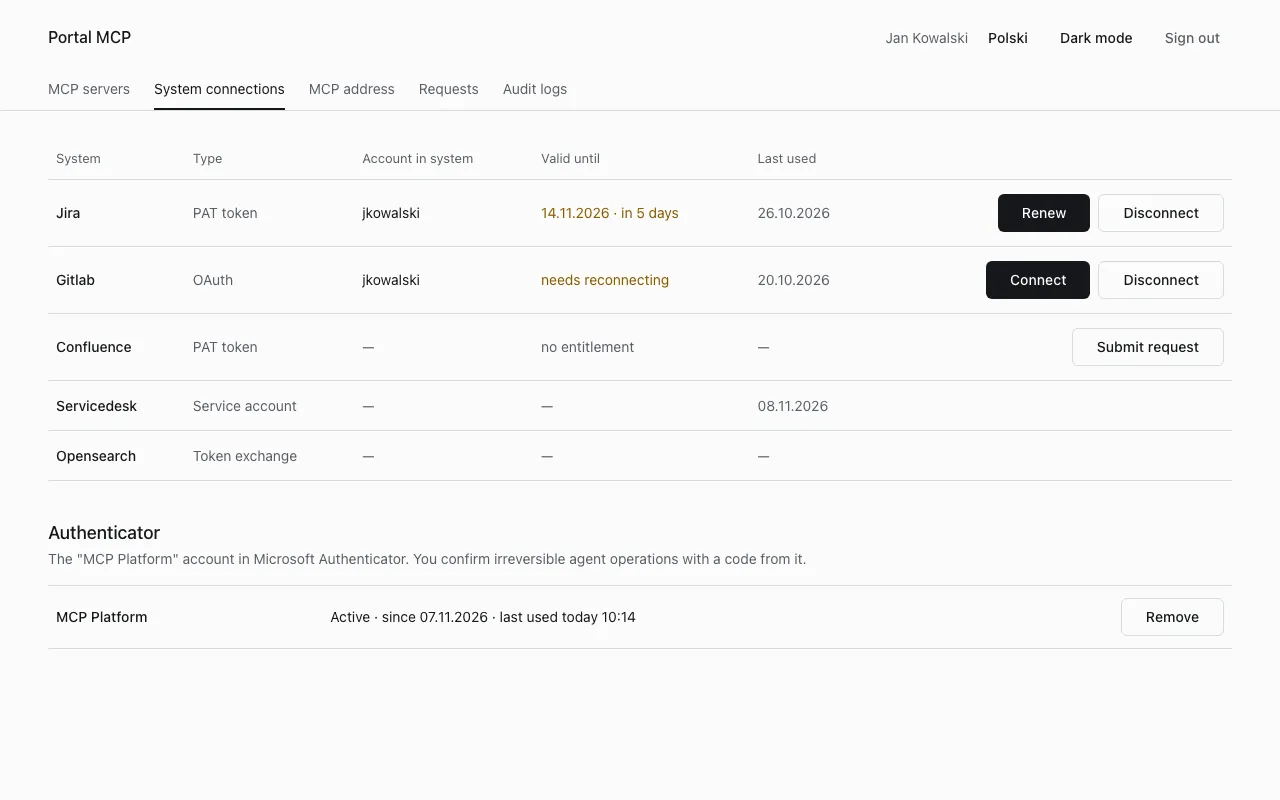
Open System connections. In the Authenticator panel select Register.
-
Read the information page and select Next. The identity provider asks for your password and OTP again. Only registration and removal need this.
-
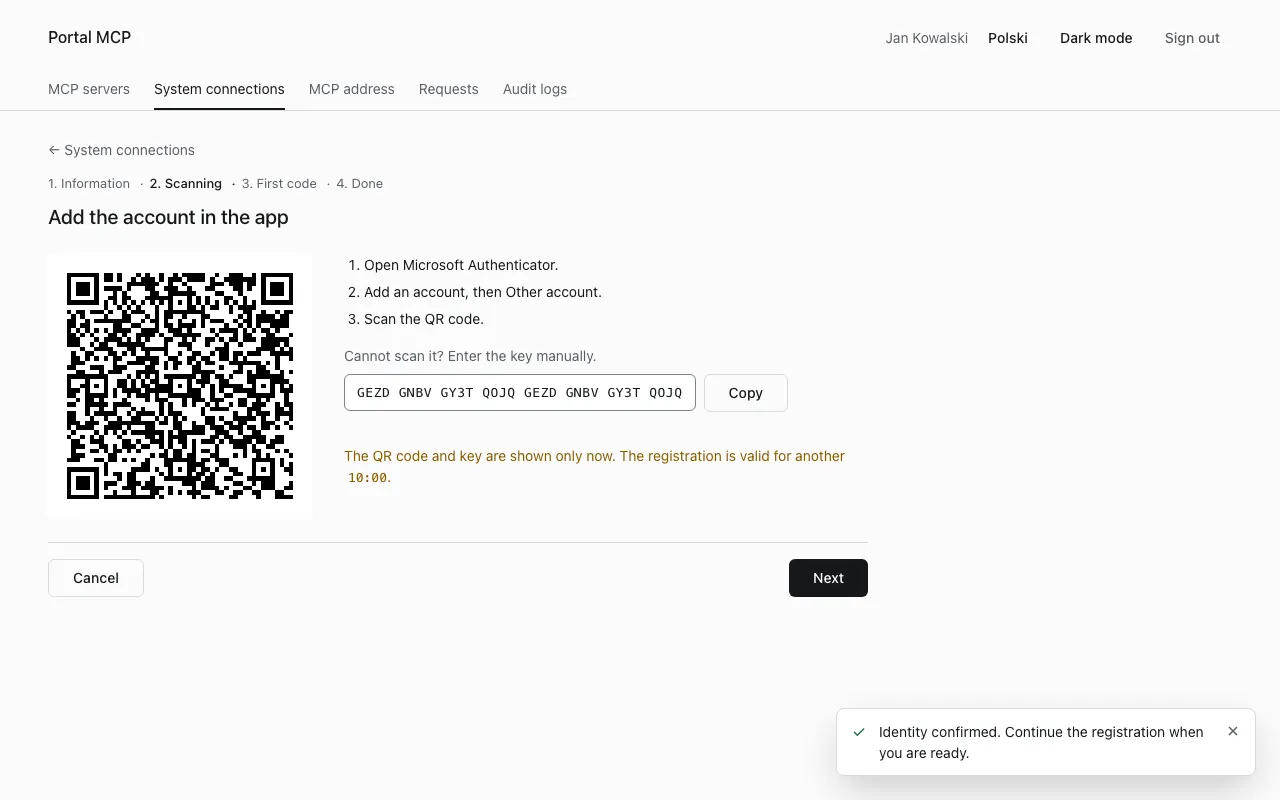
In Microsoft Authenticator, add an account, choose Other account and scan the QR code. If you cannot scan, copy the key from the page and enter it by hand.
-
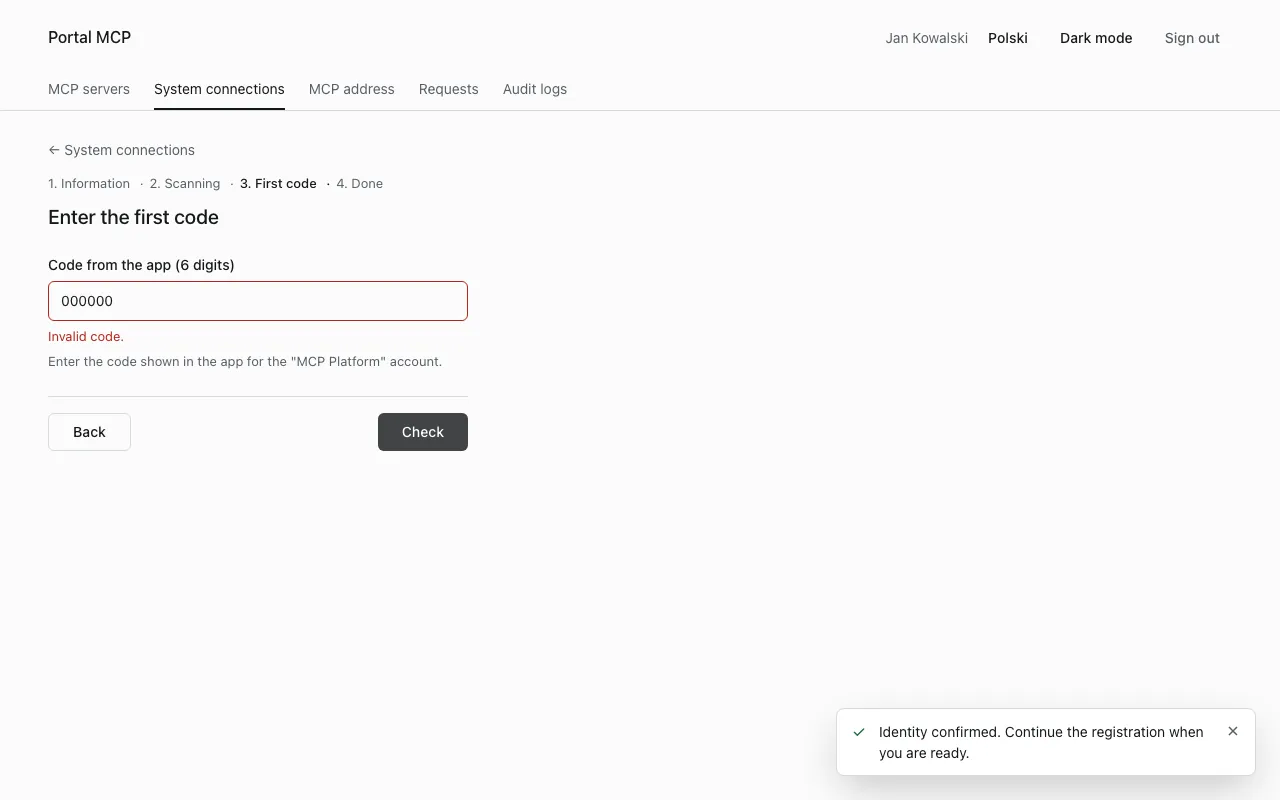
Select Next, type the 6-digit code the app shows for “MCP Platform” and select Check.
The page ends with “Authenticator registered”, and the panel shows the state Active.
The QR code and key are shown once, and the registration must be finished within 10 minutes. After 3 wrong codes, or when the time runs out, the page says “The registration expired or 3 wrong codes were entered.” Delete the “MCP Platform” account you just added in the app and select Start over.
The portal text refers to Microsoft Authenticator. Only that app was checked; an app that follows RFC 6238 (6 digits, 30 second step) should work too.
Return after the extra sign-in
Section titled “Return after the extra sign-in”Registration, removal and some other actions ask the identity provider for a fresh sign-in with the OTP. When you come back to the same tab within 5 minutes, the portal finishes the action you started. Registration stops on a message and waits for you to select Continue registration, so that you have the phone in hand when the QR code appears.
States of the Authenticator
Section titled “States of the Authenticator”| State in the panel | Meaning | What to do |
|---|---|---|
| Not registered | no registration | select Register |
| Active | the code works | nothing |
| Locked until HH:MM | 5 wrong codes in 15 minutes | wait. Removing and registering again does not shorten the lock |
| Switched off | 20 wrong codes within a day | select Register again |
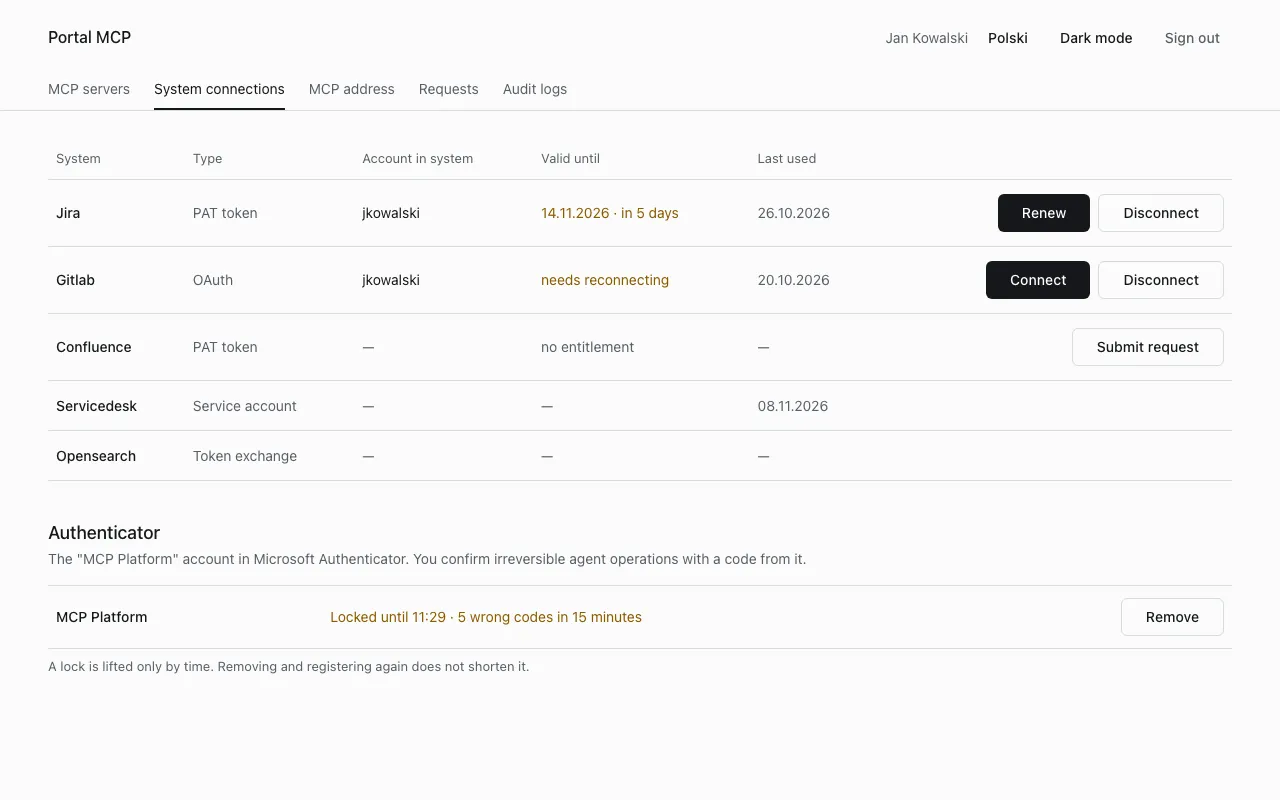
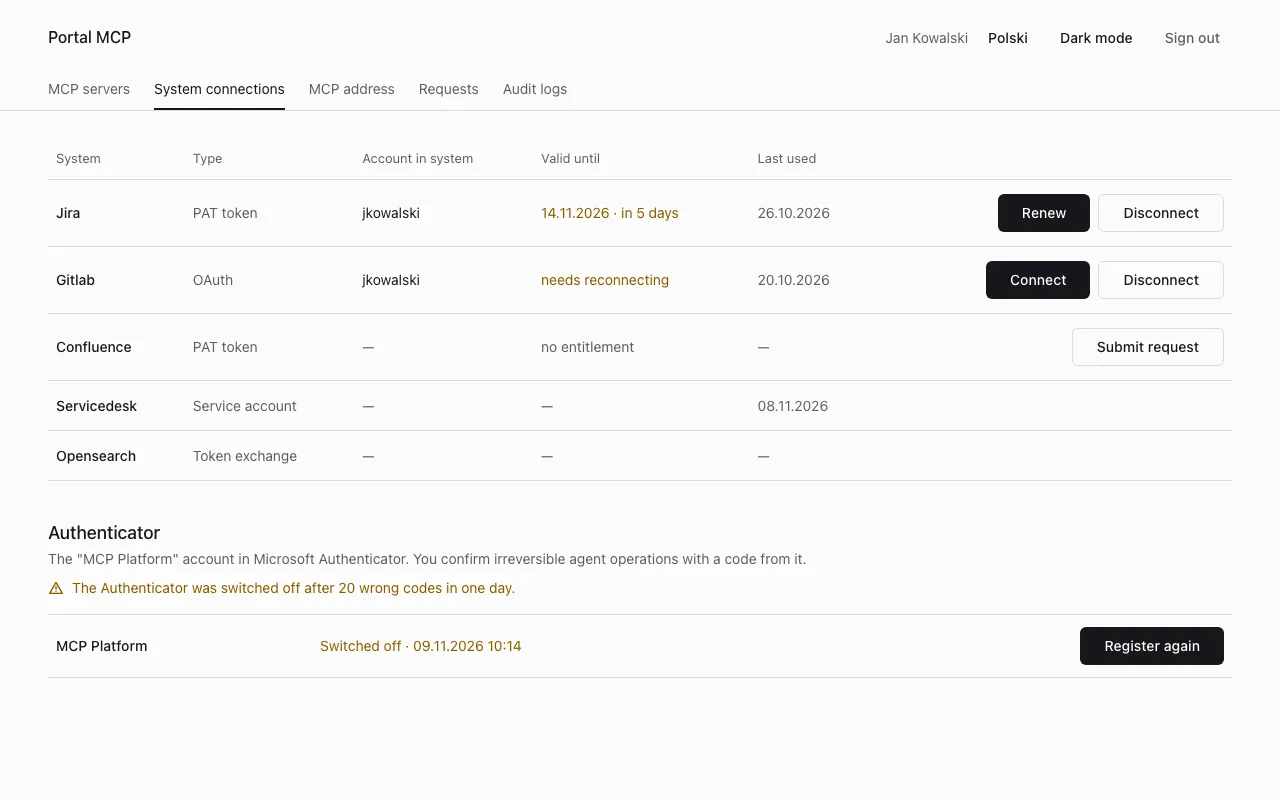
Codes that the agent submits count like yours. An agent that guesses codes can lock or switch off your Authenticator.
Replace the phone
Section titled “Replace the phone”- Select Remove in the Authenticator panel and confirm the extra sign-in.
- Register again on the new phone.
- Delete the old “MCP Platform” entry from the old app.
If you also lost the OTP of your company account, ask an administrator to reset it.
If a registration already exists, the registration page says “Authenticator is already registered”. Remove the current one first.