
Confirm a destructive operation with a code
A destructive tool, for example jira__delete_issue, runs only after you type a 6-digit code from the “MCP Platform” entry of your authenticator app. The agent cannot produce the code and the model never sees the seed behind it. You need a registered Authenticator first, see Register the Authenticator.
Confirm an operation
Section titled “Confirm an operation”-
Ask the agent to do the operation. The platform holds the call for 120 seconds and gives the agent a description of the operation, read from the arguments, and a link to the preview in the portal.
-
Read the description the agent shows. If it is not what you meant, do not type a code.
-
Optional: open the preview link in the browser where you are signed in to the portal. The preview shows the operation as the gateway read it, independent of what the agent says.
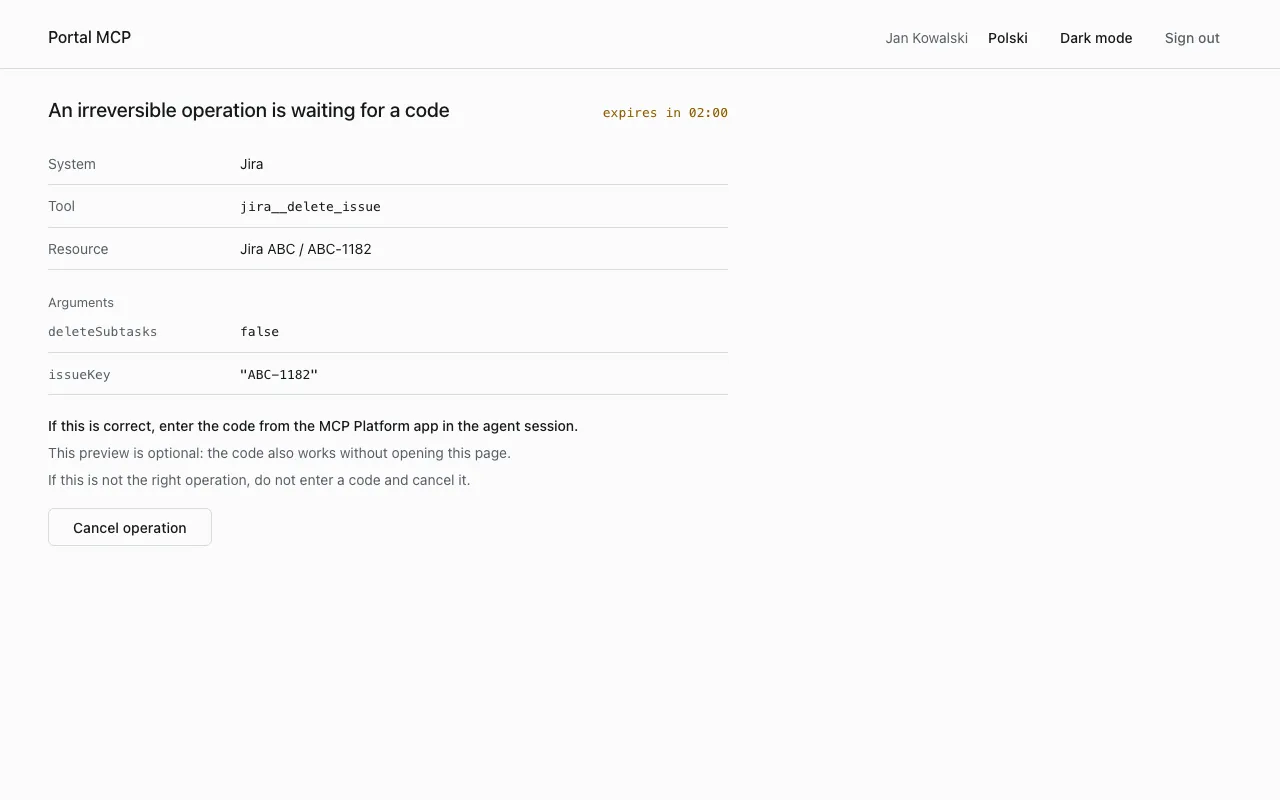
-
If the preview is right, open the “MCP Platform” entry in your app and type the current code in the agent session.
-
The agent repeats the same call with the code. After success it reports the result. The call is listed in Audit logs without the code.
The preview is optional, the code works without opening it. If the agent changes the arguments of the call, the pending operation is void and a new confirmation starts.
You have 3 attempts per operation.
One pending operation
Section titled “One pending operation”After you open a preview, a different destructive operation of yours is refused with confirmation_blocked until the first one expires or you cancel it. Do not type a code for a blocked call.
If you did not open the preview, a newer destructive call replaces the older one, and the older one ends with confirmation_superseded.
Cancel an operation
Section titled “Cancel an operation”- Open the preview.
- Select Cancel operation.
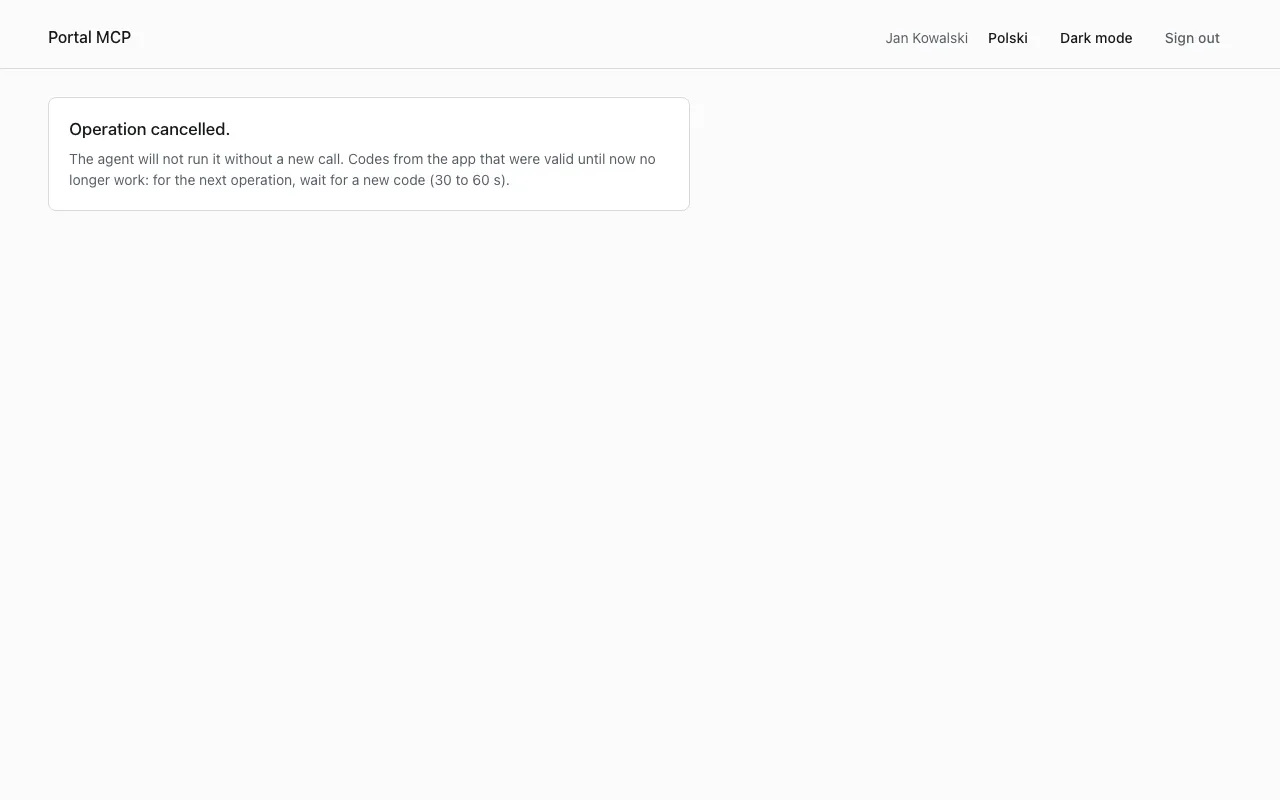
Cancelling makes the codes that were valid until then useless. For the next operation, wait 30 to 60 seconds for a new code. If the agent retries a cancelled call, it ends with confirmation_cancelled.
When time runs out
Section titled “When time runs out”After 120 seconds the preview says “Time is up. Ask the agent to retry. Do not enter a code for this operation.” Ask the agent to repeat the operation.
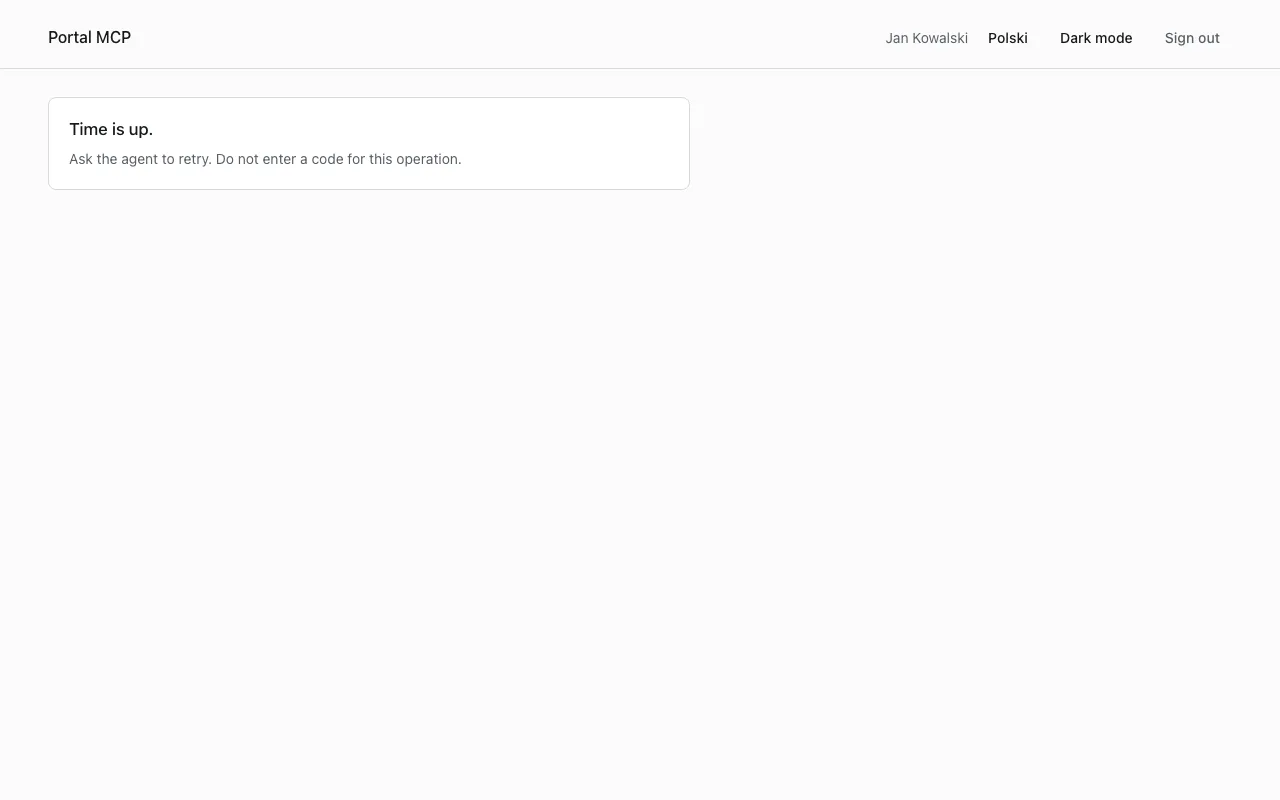
A preview link that shows “This link is out of date.” belongs to an operation that was replaced, completed or expired. Do not type a code for it.
Why a code is rejected
Section titled “Why a code is rejected”| Cause | What the agent gets | What to do |
|---|---|---|
| the code is from another entry of the app | confirmation_failed |
use the entry “MCP Platform” |
| the phone clock is off by more than about 30 seconds | confirmation_failed |
set the phone clock to automatic |
| the code was already used | confirmation_failed |
wait for the next code |
| more than 120 seconds, or 3 wrong codes | confirmation_failed |
ask the agent to repeat the operation |
| the operation was cancelled | confirmation_cancelled |
start again if you still want it, after 30 to 60 seconds |
| a newer operation replaced it | confirmation_superseded |
start the operation again |
| another operation waits and its preview is open | confirmation_blocked |
cancel or wait for the other one |
| 5 wrong codes within 15 minutes | rate_limited with a wait time |
wait 15 minutes, nothing shortens the lock |
| 20 wrong codes within a day | Authenticator state “Switched off” | register again |
| no Authenticator | confirmation_required with a link to register |
register, see Sign in |
The Authenticator panel shows the lock and the switched-off state, see States of the Authenticator. All error codes: Errors and limits.
Codes that the agent submits count like yours. An agent that guesses codes can lock your Authenticator.
Which tools need a code
Section titled “Which tools need a code”Tools with the risk Delete. The portal marks them “Requires a code from the Authenticator” on MCP servers. They also need the group mcp-<system>-destructive. The list is in Tools and access groups.