Grant access with groups and the scope mapping
The platform grants nothing by itself. What a user may do follows from the groups in the groups claim of their token and from two things you maintain: the role groups in the identity provider, and the scope mapping in the portal.
| Question | Answered by |
|---|---|
| May this user call tools of this risk in this system? | A role group in Keycloak: mcp-<system>-read, -write, -destructive |
| On which projects, spaces, groups or queues? | The scope mapping in the portal: group to resource scopes |
| Which AI client may call tools at all? | MCP_ALLOWED_CLIENTS on the gateway |
Role groups in Keycloak
Section titled “Role groups in Keycloak”Create one group per system and risk in the console of the realm (https://<platform>/auth/admin/mcp/console/) and add the users. Names are exact and case sensitive, and the token must carry them without a path (mcp-jira-read, not /mcp-jira-read). The realm of the Compose bundle defines only mcp-platform-admin, the platform administrators. You create the others when you add a server.
| Group | Allows |
|---|---|
mcp-<system>-read |
Tools with the risk Read, for example mcp-gitlab-read, mcp-jira-read |
mcp-<system>-write |
Tools with the risk Write, for example mcp-gitlab-write |
mcp-<system>-destructive |
Tools with the risk Delete. Each call also needs a code from the user’s Authenticator |
mcp-platform-admin |
The Administration pages of the portal |
A tool can also name an additional group in its manifest, for example mcp-opensearch-ops for the cluster-wide tools of OpenSearch. Then the user needs both groups. The additional group can only narrow access. The group names a server uses are in its README.
A role group alone is not enough for writes: they are allowed only inside scopes that the scope mapping grants (next section). Some servers apply scopes to reads as well. Service Desk and OpenSearch, for example, give nothing without a group mapped to a queue or an index prefix.
To let users see in the portal which groups they can ask for, list the groups per system in the catalog file of the portal (see Configuration). Keep mcp-platform-admin out of it. The portal then shows the entitlements, and you add users to the groups in Keycloak. This catalog does not file requests.
Scope mapping
Section titled “Scope mapping”A scope names one resource: <Namespace>::<Type>/<id>. A group in the mapping grants the scopes listed next to it to everyone who is in that group. A group without an entry grants nothing.
- Open Administration, Scope mapping.
- Select Add group and enter the Group: a name that starts with
mcp-and uses letters, digits, dots, underscores and hyphens. - Enter the Scopes (one per line).
- Repeat for each group, then select Save mapping. If the portal asks for it, confirm your identity at the identity provider. You come back with your edits.
Examples:
| Group | Scopes |
|---|---|
mcp-jira-proj-ABC |
Jira::Project/ABC |
mcp-team-platform |
Jira::Project/PLATConfluence::Space/PLATFORM |
mcp-gitlab-team-a |
GitLab::Group/team-a (covers the subgroups and projects below it) |
mcp-servicedesk-it |
ServiceDesk::Queue/IT |
A group may hold one scope or several, as mcp-team-platform does.
Rules the gateway checks when you save:
- The type (
Jira::Project,GitLab::Groupand so on) must be declared by a registered server, and its declaration must have a scope pattern. Servers declare their types in the policies you approved (see Add and approve an MCP server). The list Resource types declared by the registered servers, below the form, shows the types and their patterns. A type marked cannot be granted has no scope pattern. - The part after the slash must match the scope pattern of the type. A Jira project key, for example, is capital letters, digits and underscores, 2 to 10 characters.
- A group appears once. Scope identifiers are ASCII only.
The whole document is saved at once. If one scope is invalid, nothing is saved, and the portal shows the reason from the gateway with a reference for support. The form also warns about a wrong type or pattern before you save.
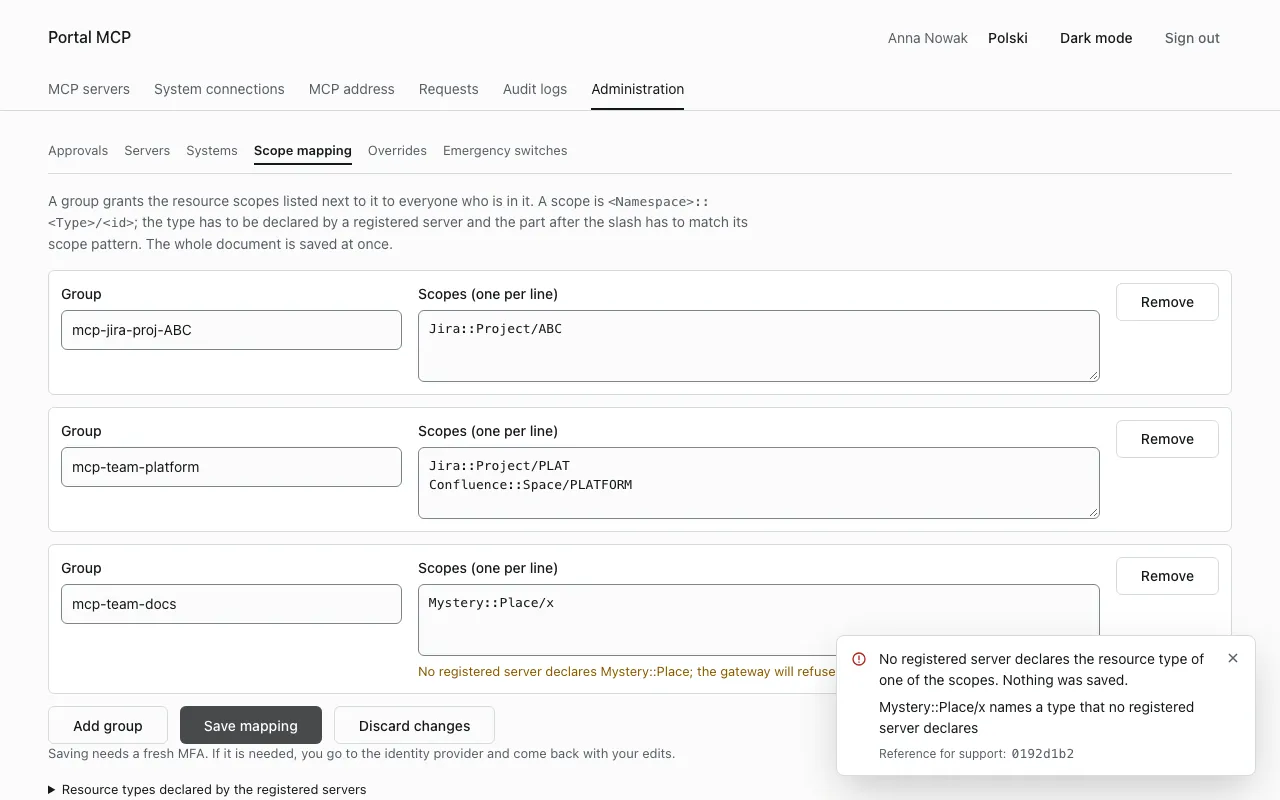
Servers pick up a saved mapping within seconds. If two administrators edit at the same time, the second save is refused because the document changed, and the portal shows the current mapping again (The current mapping is shown below; your edits were not kept.). Remove a server and its entries disappear with it. If an approval of new policies makes an entry invalid, evaluation ignores that entry until you correct it.
AI clients
Section titled “AI clients”The gateway accepts tool calls only from AI clients whose id (the azp claim of the token from the identity provider) is on a list. The default is claude-code and claude-ai (Claude Desktop and claude.ai).
To allow another client:
-
Register the client at the identity provider, with the audience
mcp-gatewayin its tokens. The realm of the Compose bundle has the clientsclaude-codeandclaude-ai. For the token requirements see Authentication. -
Set the list in the environment of the gateway, comma separated, and restart the gateway:
Terminal window MCP_ALLOWED_CLIENTS=claude-code,claude-ai,<your-client-id> -
Check that the new client signs in and lists tools.
A client id uses only letters, digits, dots, underscores and hyphens (1 to 128 characters). With several gateway instances, set the same value on every one. A change of the list raises the revision of the policy data, and the gateway passes the list to the servers.
A client that is not on the list is refused whatever groups the user has.