
Connect your account in GitLab, Jira or Confluence
The platform calls Jira, Confluence or GitLab with your own credential, so each product you use needs one connection. The credential is kept in the platform’s secret store and sent to the product only for your calls. Everything happens on the portal pages MCP servers and System connections.
Which systems need a connection
Section titled “Which systems need a connection”| System | How you connect | What the platform sends |
|---|---|---|
| Jira, Confluence | personal access token (PAT) | your token |
| GitLab | OAuth, or a personal access token | your OAuth token or your token |
| OpenSearch | nothing to connect (Token exchange) | a token the identity provider issues in exchange for yours |
| Service desk | nothing to connect (Service account) | the platform’s service account key |
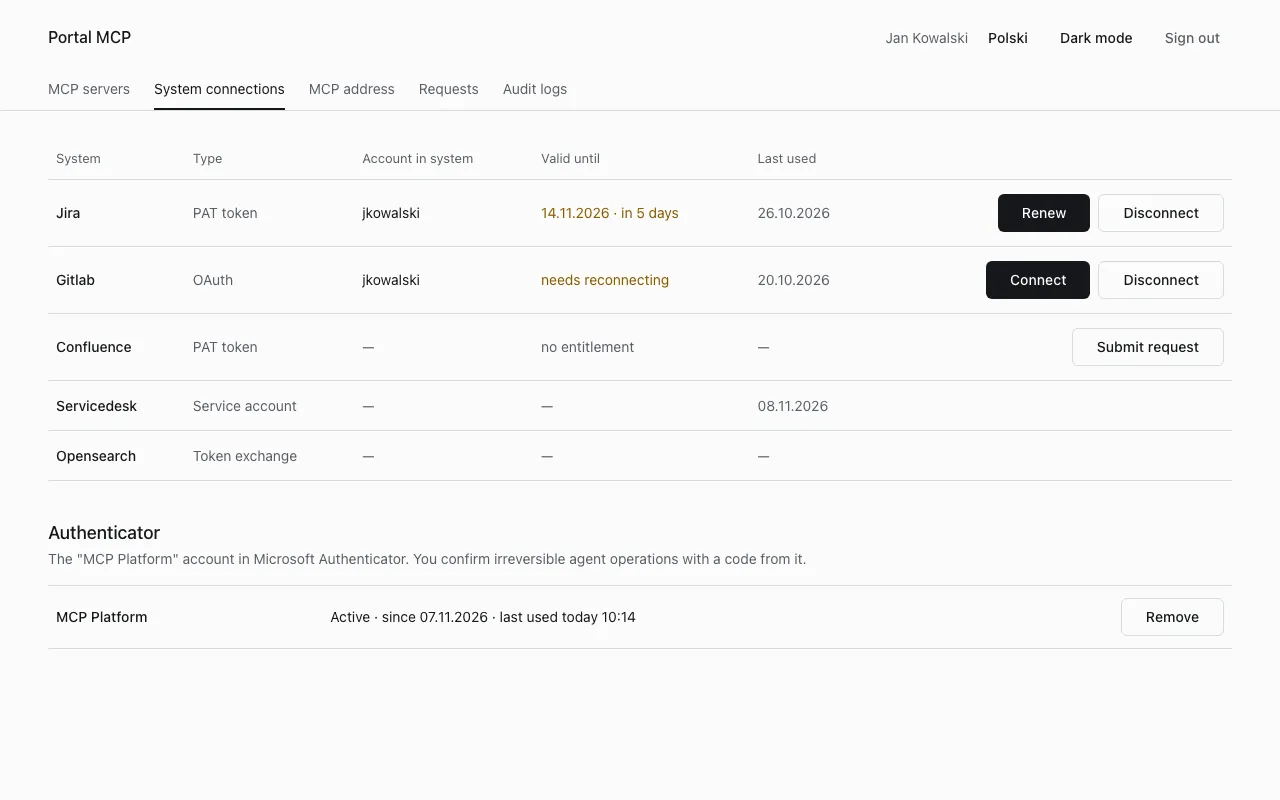
A system is missing from the list when you have no group that gives access to it. See Tools and access groups and Access requests.
Connect with a token
Section titled “Connect with a token”- In the product, create a personal access token (Jira and Confluence: profile, personal access tokens; GitLab: Preferences, Access Tokens). Give it the narrowest rights and the shortest expiry that works for you.
- In the portal open MCP servers and select Add token next to the system.
- Paste the token in the PAT token field. If you know the expiry date, enter it in Token expiry date (optional).
- Select Check and save.
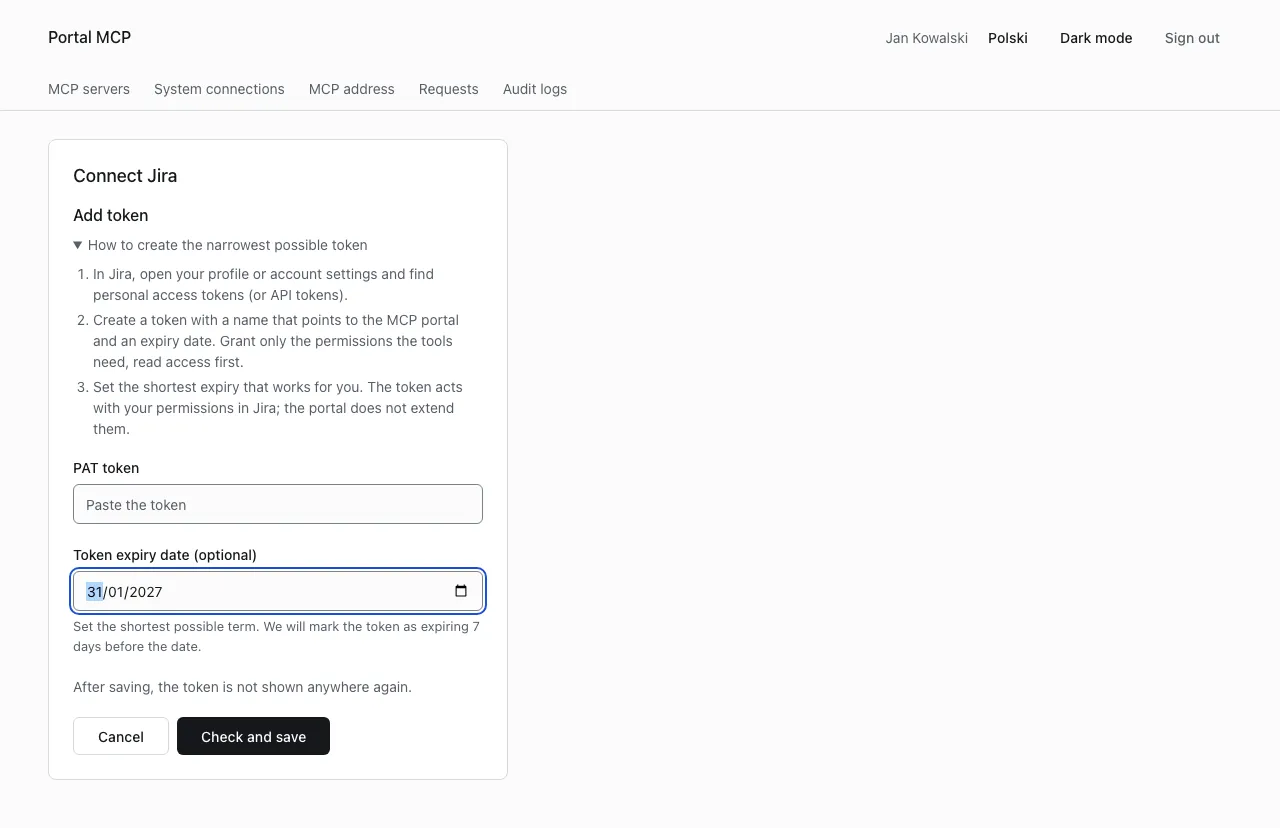
The platform calls the product once with the token to check it, reads the account name and shows it in the Account in system column. The token is not shown again after saving.
A system that signs in with a login and a password or API token (the Basic scheme) shows a login field above the secret. The login must not contain a colon. The portal does not write it to its logs.
If the product does not check tokens at save time, the portal says so. A wrong or expired token then shows up only when a tool uses it.
The account in the product does not have to match your company sign-in name. The platform records which account you attached (field backendUser in the audit trail).
Rights the token needs
Section titled “Rights the token needs”The token has your rights in the product. The portal does not widen them.
| System | Token | Rights for the tools |
|---|---|---|
| GitLab | scope read_api for reading, api if you use tools that change data |
project member rights for what you change. Do not select sudo, admin_mode or write_repository, no tool uses them |
| Jira | personal access token of Jira Data Center | Browse Projects for reading. Create Issues, Edit Issues, Transition Issues and so on for writing |
| Confluence | personal access token of Confluence Data Center | View on the spaces you read. Add and Edit pages for page and label tools, Add comments for comments, Delete pages for delete_page |
Writes are also limited by the platform to the projects, groups and spaces that your administrator mapped to your groups. The tools of each product are in Tools and access groups.
Connect with OAuth (GitLab)
Section titled “Connect with OAuth (GitLab)”- Open MCP servers and select Connect with OAuth next to GitLab.
- Select Go to the system sign-in. The portal sends you to the GitLab sign-in page.
- Approve access. You return to the portal, and the connection shows the GitLab account.
The portal never sees your GitLab password. The platform renews the token before it expires. The link to the product is valid for 15 minutes and works once. Starting again cancels the earlier attempt, and cancelling on the GitLab page shows “Connecting to GitLab cancelled.”
Statuses
Section titled “Statuses”The Valid until column and the Status column on MCP servers show the state.
| Portal wording | Meaning | What to do |
|---|---|---|
| Connected | the credential works | nothing |
| Token expires in N days, Expires soon | you gave an expiry date and 7 days or fewer remain | create a new token in the product and select Renew |
| needs reconnecting | the token expired, the OAuth grant was revoked in the product or the product refused it | select Connect (OAuth) or Renew (token) |
| stopped working, reconnect the account | the platform lost the stored secret or could not save a refreshed one | connect again. If several users see it, tell an administrator |
| the administrator changed the system settings, connect the account again | the connection was deleted after a change of the system in the administration (status needs_reconnect) |
connect again |
| no entitlement | no group gives you access to the system | see Access requests |
| request pending | an access request waits for a decision | wait |
| refreshed automatically, no expiry | OAuth token renewed by the platform, or a token without expiry date | nothing |
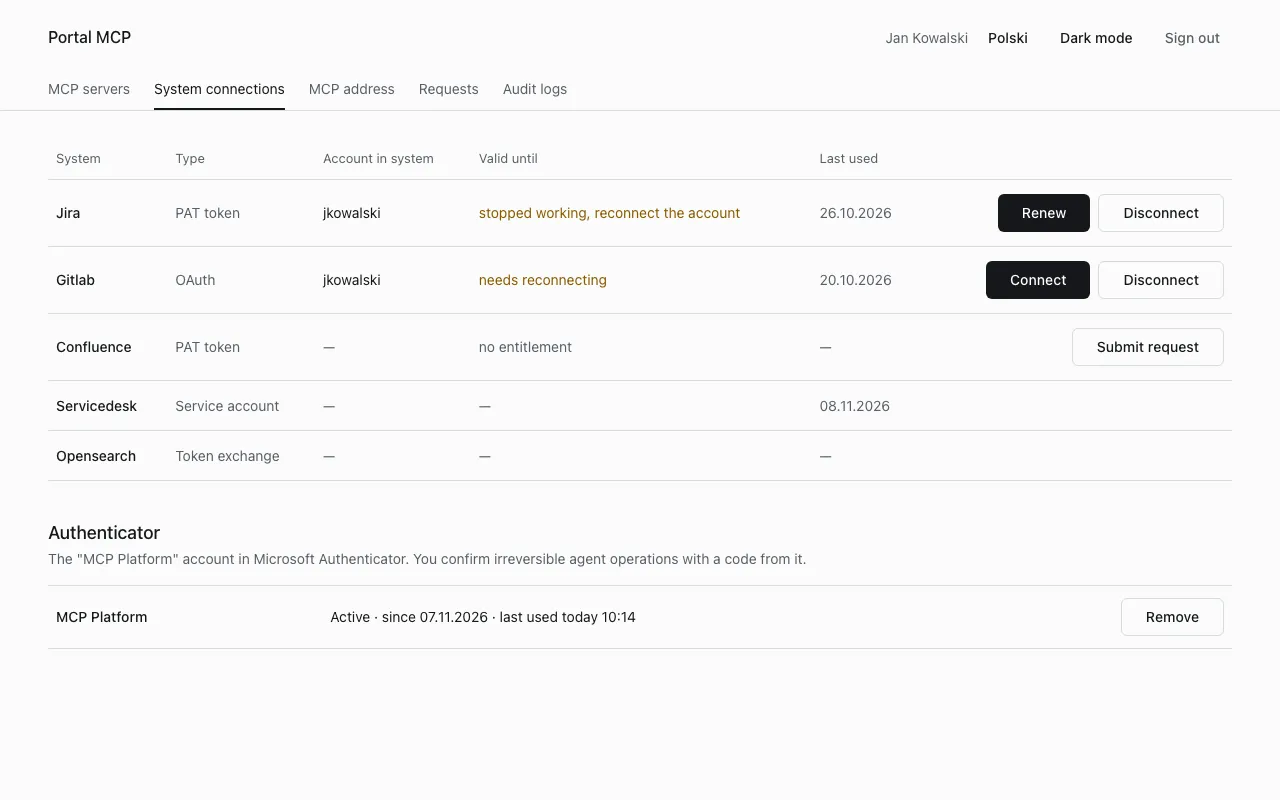
While a connection is broken, a tool call of that system returns credential_required with a link to the connection page, and nothing is called in the product. An expired token is not renewed for you.
Errors when saving
Section titled “Errors when saving”| Message | Cause | What to do |
|---|---|---|
Token is invalid or expired. (secret_invalid) |
the product refused the token | check the token and its scope in the product, create a new one |
| The service is temporarily unavailable. | the product or the platform’s secret store did not answer | try again in a moment. If it stays, tell an administrator |
| Too many requests. Try again in N s. | more than 10 token saves per minute in one portal session | wait the given time |
| This system does not need connecting, or you do not have access to it | a wrong system address, or no entitlement | open MCP servers and use the button there |
If saving fails because the platform does not trust the product’s certificate, the portal shows “The service is temporarily unavailable.” Tell an administrator, the platform needs the CA certificate of the product.
Disconnect or renew
Section titled “Disconnect or renew”- Renew replaces the token. Use it before the expiry date.
- Disconnect deletes the stored credential and, for OAuth, revokes the tokens at the product. The tools of that system stop working until you connect again.
- A connection that nobody used for 180 days is removed automatically.